Short answer: Asana has separate Timeline and Gantt views, both on Starter and up. Clients can join as free guests (view-only or comment-only if you choose), or open a read-only link without an account, for up to 200 tasks. For a visual progress page clients understand at a glance, export the project to CSV and share a live Waypoint link.
Asana’s Timeline and Gantt views
- Timeline shows tasks with start and due dates as bars, grouped by section, with dependencies you can draw.
- Gantt (added in 2023) is a classic Gantt chart with dependencies and a baseline. It doesn’t replace Timeline; you can use either.
- Both are on Starter, Advanced and Enterprise plans. The free Personal plan has List, Board and Calendar.
How to add Timeline or Gantt
- Open the project and click + next to the view tabs.
- Choose Timeline or Gantt.
- Give tasks start and due dates so they appear as bars.
Sharing an Asana project with clients
| Option | Client needs an account | Uses a paid seat | What the client sees |
|---|---|---|---|
| Guest | Invited by email | No, guests are free from Starter up | Only what’s shared with them; you can make them view-only or comment-only |
| Read-only link | No | No | A read-only Timeline, List, Board or Calendar view, up to 200 tasks. Project admins create it, and Workspace admins can turn it off. |
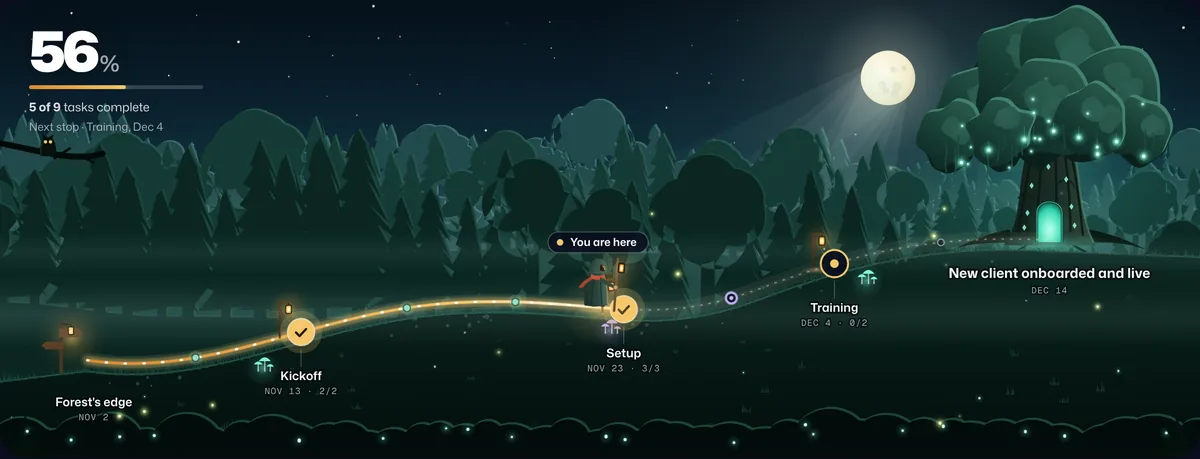
| Live Waypoint link | No | No | Progress, stops and blockers, with task names and dates only if you choose |
Why an Asana view is hard for clients
- It shows the work, not the story. Sections and task lists are how your team works. A client wants to know how far along it is, what’s blocked and when it lands.
- Guests are part of the project. They get notifications and see the discussion, unless you limit what you share.
- Read-only links have limits. They cap at 200 tasks and depend on a project admin and Workspace settings.
Turn an Asana project into a live client view
- Export from Asana. Open the project, click the drop-down next to the project name → Export/Print → CSV. Asana marks finished tasks with a Completed At date, and Waypoint counts those as done.
- Upload it to Waypoint. Start a journey, choose Upload a file and drop in the export. Waypoint finds the task, status, due date and owner columns, suggests your sections for the stops along the route, and counts tasks with a Completed At date as done. A live preview updates as you adjust.
- Name the destination. The outcome your client cares about, like “Checkout 2.0 live for every customer”, and the target date.
- Choose what clients see, then share the link. Stop names, task names and dates are each on or off. Owners and internal notes are never shown. Clients open the link in any browser, with no account, and tap a stop to see its tasks.
- Keep it current. Upload a fresh export to the same journey (journey settings → Change source or columns); Waypoint remembers your columns and the link stays the same. Or keep the tasks in a Google Sheet: Waypoint re-checks a shared sheet every 15 minutes, so the journey moves on its own.
Frequently asked questions
What is the difference between Asana Timeline and Gantt?
Both show tasks as bars over time. Gantt is a classic Gantt chart with baselines; Timeline is Asana’s original view and stays available. Both are on Starter and up.
Are Asana guests free?
Yes. Guests from outside your company’s email domain are free on Starter and higher plans, and you can limit them to view-only or comment-only.
Can I share an Asana project without a login?
Yes, with a read-only link to a Timeline, List, Board or Calendar view, for up to 200 tasks, if your Workspace admins allow it.
Does Waypoint understand Asana’s export?
Yes. Sections become stops, the Completed At date marks a task as done, and due dates and assignees come across. Owners are never shown to clients.