Short answer: the simplest reliable way to share project progress with clients is a read-only live link that shows overall progress, milestones, blockers and the target date, and updates automatically from the tool your team already uses. Pair it with a short written note whenever you need a decision.
What clients actually want to know
Almost every client question is one of three:
- Where are we? How much is done, and which milestone are we in.
- What’s in the way? Anything blocked, especially if it’s waiting on them.
- Where are we going, and when? The outcome and the date it lands.
What they rarely need: every subtask, who on your team owns what, internal comments, or your sprint mechanics. Sharing those adds noise, and sometimes things you’d rather not have forwarded.
Five ways to share project progress
1. A status email or message
A weekly note with progress, next steps and blockers (here’s a free status report template). Clients like it because it arrives without effort. It goes stale the moment it’s sent, and someone has to rewrite it every week.
2. A shared spreadsheet or document
Quick to set up and familiar. But clients have to read a grid to understand where things stand, notes and owners are visible unless you maintain a separate copy, and the shared version drifts from the one your team really uses.
3. Guest access to your project management tool
monday.com, Jira and Asana all let you invite people outside your team. It’s always current, but clients land in your working space: internal comments, notifications, unfamiliar views and, depending on the tool and plan, extra seats to pay for.
4. A client portal
Portals bundle files, invoices, messages and project status behind a client login. Useful when you need all of that. Heavy if all the client wants is to know how the project is going.
5. A live progress link
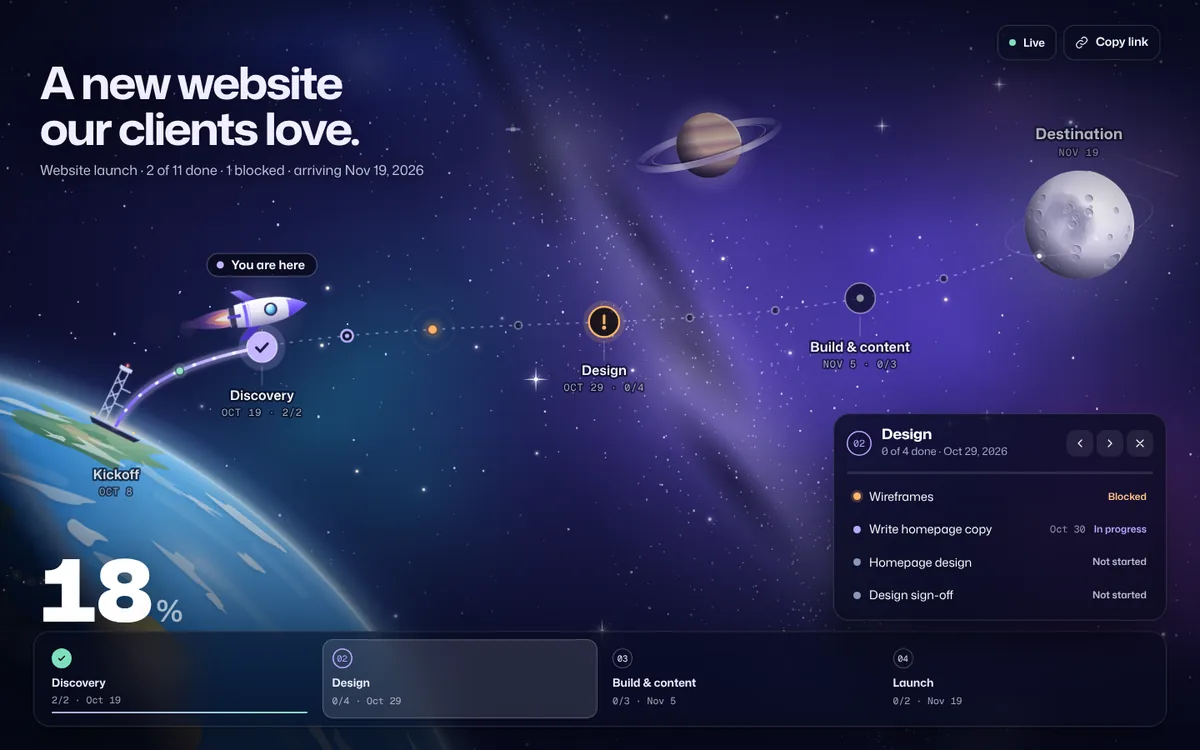
A read-only page that shows progress from your real task data and updates on its own. No account for the client, nothing for your team to maintain, and you decide which details are visible.
| Method | Stays current | Weekly effort | Client needs an account | Risk of exposing internal notes |
|---|---|---|---|---|
| Status email | No, it’s a snapshot | High | No | Low |
| Shared spreadsheet | If the team keeps it updated | Medium | Often | High |
| Guest access to your PM tool | Yes | Low | Yes | High |
| Client portal | Depends on the portal | Medium | Yes | Medium |
| Live progress link | Yes | Low | No | Low: you choose what shows |
Why guest access often backfires
Inviting clients into the tool you work in feels transparent, but it tends to create more questions than it answers. They see half-finished tasks without context, read comments meant for teammates, get notifications they didn’t ask for, and have to learn a tool they’ll use once a week. Many teams end up maintaining a cleaned-up “client board” anyway, which brings back the duplicate-work problem.
How to share a live progress link with Waypoint
- Connect where the work already lives. Paste a Google Sheets share link (Waypoint checks it every 15 minutes), or upload a CSV or Excel export from monday.com, Jira, Asana, Notion, Trello, ClickUp, Linear, Airtable, GitHub or Microsoft Planner. You can also start fresh in Waypoint.
- Check the mapping. Waypoint finds your task, status, milestone, due date and owner columns, and maps your status words (like “Working on it” or “Stuck”) to four states. A live preview updates as you adjust.
- Name the destination. The outcome the client cares about, like “A new website our customers love”, plus the target date.
- Choose what clients see. Milestone names, task names and dates are each on or off. Owners and internal notes are never shown. Progress always is.
- Send the link. Put it in your kickoff email, pin it in the shared channel, or add it to your email signature for the project. Clients open it in any browser, with no account.
What to write when you send the link
A short note sets expectations so clients use the link instead of asking for updates:
Hi [Name],

Here's a live view of [project]: [link]

It updates as we finish work, so you can check where things stand any time without waiting for an update from us. Each stop is a milestone; tap one to see what's in it. Anything marked "blocked" needs something from your side, and we'll flag it here and by email.

We'll still send a short note whenever there's a decision to make.

[Your name]
Keep a written note for decisions
A live link replaces the weekly “here’s where we are” update. It doesn’t replace conversations. Send a short note (or call) when something needs a decision, when a blocker is waiting on the client, or when the target date moves. Because the progress is already visible, those messages can be short and specific.
Frequently asked questions
Should I give clients access to our project management tool?
Only if they work in it with you day to day. For most clients, guest access shows too much (internal comments, owners, half-finished tasks) and adds a tool to learn. A read-only progress view gives them what they need without the noise.
How often should I update clients on project progress?
With a live link, clients can check whenever they like. Send a written update weekly for short projects, and right away when a blocker needs them or the target date changes.
What is the difference between a client portal and a live progress link?
A client portal is a logged-in space for files, invoices, messages and status. A live progress link is a single read-only page that shows how the project is going and updates on its own. Many teams only need the second.
Can clients see internal notes or who owns a task in Waypoint?
No. Owners and notes are never included in Waypoint live links. You choose whether milestone names, task names and dates are shown; progress is always shown.
Do clients need an account to view a Waypoint live link?
No. Live links open in any browser on any device, and people who view them never count as editors on your plan.