Short answer: Trello has no built-in Gantt chart. Its Timeline view (Premium and Enterprise) shows cards with start and due dates as bars, but only board members can use it. For a true Gantt chart, add a Power-Up such as TeamGantt or Placker’s Gantt chart. To show clients progress without adding them to the board, export it to CSV and share a live Waypoint link.
Trello’s Timeline view, and Gantt Power-Ups
- Timeline view lays out cards with start and due dates as bars. It’s on Premium and Enterprise Workspaces, on web and desktop, and only board members can use it.
- Calendar, Table, Dashboard and Map views are also Premium and Enterprise features.
- Gantt Power-Ups add dependencies and a classic Gantt layout. Check each one’s pricing and permissions in the Power-Up directory.
How to open Timeline view
- Open the board in a Premium Workspace.
- Open the view switcher next to the board name and turn on Timeline.
- Give cards start and due dates, or drag the edges of a bar to set them.
Sharing a Trello board with clients
| Option | Client needs an account | Cost | What the client sees |
|---|---|---|---|
| Public board | No (to view) | None | Every card and comment on the board. Not Timeline view. |
| Guest on one board | Yes | Free; guests on two or more boards are billed on Standard and Premium | The whole board, and they can edit by default |
| Observer (Premium) | Yes | Free as a single-board guest | The board, read-only, with comments and votes |
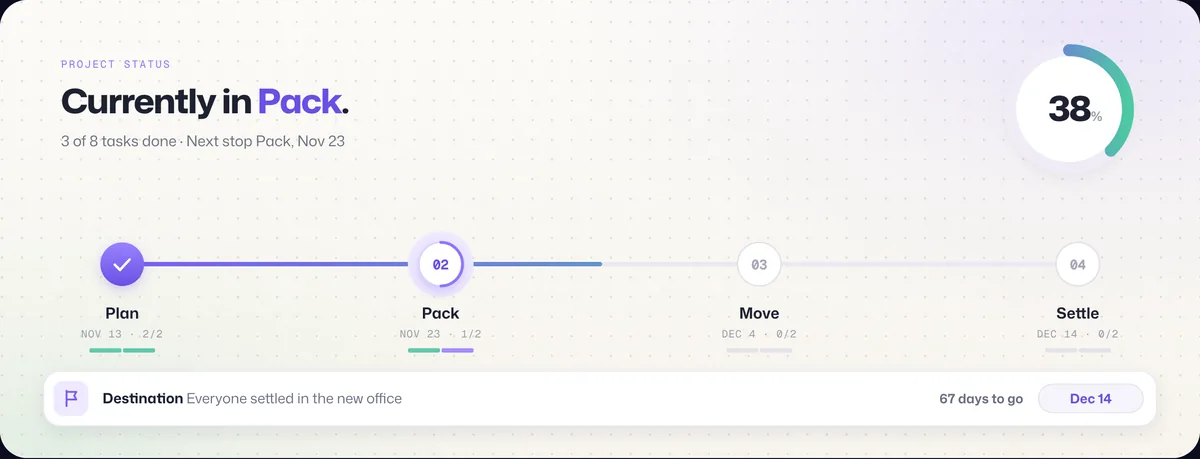
| Live Waypoint link | No | None | Progress, stops and blockers, with task names and dates only if you choose |
Free Workspaces are limited to 10 collaborators, and guests count toward that limit.
Turn a Trello board into a live client view
- Export from Trello. Open the board menu → Print, export, and share → the CSV export (needs a Premium Workspace; JSON export is available to everyone). Archived cards aren’t included. If your lists are stages like To do, Doing and Done, choose the list as the status in the next step and use a label for stops.
- Upload it to Waypoint. Start a journey, choose Upload a file and drop in the export. Waypoint finds the task, status, due date and owner columns, suggests the list name for the stops along the route, and maps statuses like “Doing”, “Blocked” and “Done” to four states: not started, in progress, blocked and done. A live preview updates as you adjust.
- Name the destination. The outcome your client cares about, like “Checkout 2.0 live for every customer”, and the target date.
- Choose what clients see, then share the link. Stop names, task names and dates are each on or off. Owners and internal notes are never shown. Clients open the link in any browser, with no account, and tap a stop to see its tasks.
- Keep it current. Upload a fresh export to the same journey (journey settings → Change source or columns); Waypoint remembers your columns and the link stays the same. Or keep the tasks in a Google Sheet: Waypoint re-checks a shared sheet every 15 minutes, so the journey moves on its own.
Frequently asked questions
Does Trello have a Gantt chart?
Not built in. Timeline view (Premium and Enterprise) is the closest, and Power-Ups such as TeamGantt or Placker’s Gantt chart add a full Gantt chart.
Can people outside the board see Trello’s Timeline view?
No. Timeline view is available to board members only, so a client viewing a public board won’t see it.
Are Trello guests free?
A guest on a single board is free. Guests on two or more boards in a Workspace are billed like members on Standard and Premium.
Can I export a Trello board to CSV?
Yes, from the board menu under Print, export, and share, on Premium Workspaces. Everyone can export JSON.