Download the Excel template (.xlsx) or the CSV version. It has a Customers tab with 22 columns (cycle, first due date, usual days, window, no-go times, time on site for one tech and a crew, usual technician, season dates), eight example customers, and a This week tab that marks each service Yes or No for the week you choose. Free, no sign-up.
What’s in the template
Customers tab
One row per recurring service, with drop-downs for the visit cycle and crew size. A customer with weekly fryer oil and quarterly hood cleaning gets two rows.
This week tab
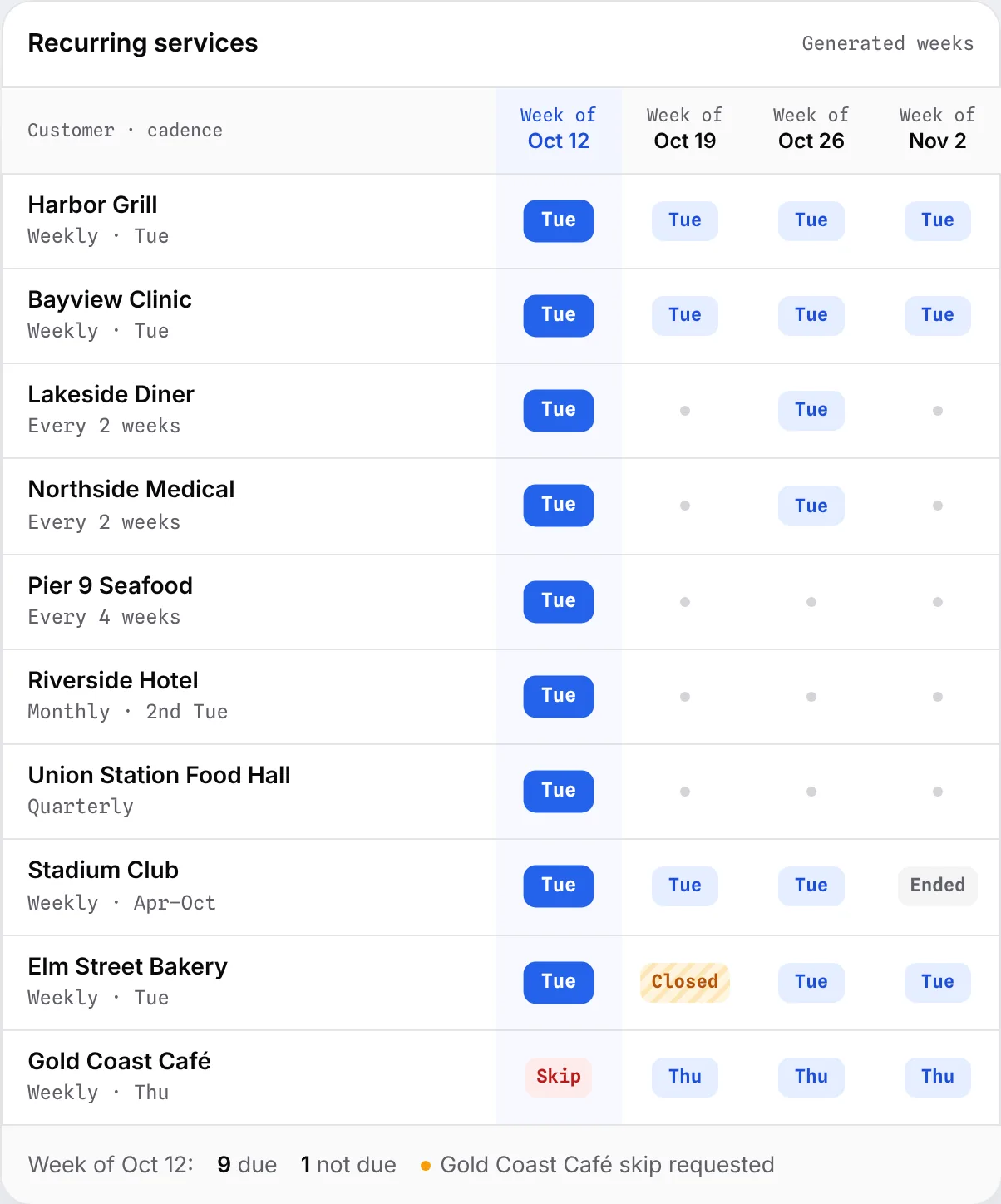
Type a Monday in B2 and every row shows whether it’s due that week, out of season, or not due. Weekly, every 2–4 weeks, monthly, quarterly, twice a year, yearly and one-offs are covered.
How to use tab
Short instructions for each column, including how first due dates anchor every-other-week and monthly cycles.
CSV version
The Customers tab only, for Google Sheets (File › Import) or any system that takes CSV.
The columns, explained
| Column | What to enter |
|---|---|
| Customer, Service | Who and what. One row per service. |
| Address, City, State, ZIP | The service address (not the billing address). |
| Contact name, Phone, Email | Who to tell when a visit moves. |
| Visit cycle | Weekly, Every 2 weeks, Every 3 weeks, Every 4 weeks, Monthly, Quarterly, Twice a year, Yearly or One-off. |
| First due date | The first date this service is due. Every later visit counts from it. |
| Usual days | The days the customer expects you, for example “Tue, Wed”. |
| Window start, Window end | When you’re allowed on site, in 24-hour time (05:30, 18:30). |
| No-go times | Days or hours to avoid: lunch rush, event days, school days. |
| Time on site, 1 tech / 2 crew | Minutes on site for one technician and for a two-person crew. |
| Usual crew size, Usual technician | Who normally goes and how many. |
| Season start, Season end | For seasonal customers; leave blank if year-round. |
| Notes | Access notes, gate codes, who to ask for. |
How the “due this week” tab works
For weekly and every-N-weeks cycles, the tab counts whole weeks from the first due date and marks the row due when the count divides evenly by N. For monthly, quarterly, twice-a-year and yearly cycles, it checks whether that date’s monthly repeat lands in the week. Seasonal rows outside their season show “No (out of season)”.
Tip: set first due dates on purpose. If you give half of your every-other-week customers a first due date in week A and half in week B, the two weeks come out balanced.
The full method, with the formulas: how to schedule biweekly and monthly customers.
Use it in Google Sheets
- Upload the .xlsx to Google Drive and open it with Google Sheets, or create a sheet and use File › Import with the CSV.
- Share it with your team as your master list.
- When you’re ready to plan in Crewtide, choose File › Download › Microsoft Excel (.xlsx) and import it. See Crewtide + Google Sheets.
From template to routes
The template tells you who’s due. It doesn’t place them on routes, check windows against drive times, or tell you what moving one customer bumps. That’s what Crewtide does with the same file: import it, build the week with route optimization, fix what the checks flag and publish route sheets.
Questions
Is the template free?
Yes. Download the Excel or CSV file with no sign-up.
Does it work in Google Sheets?
Yes. Upload the .xlsx to Google Drive and open it with Google Sheets, or import the CSV.
How do I mark every-other-week customers?
Choose “Every 2 weeks” as the visit cycle and enter the first due date. The This week tab works out which weeks follow.
Can I import it into Crewtide?
Yes. The column names match Crewtide’s customer import. Start a 14-day free trial and import the Customers tab.
Can it plan the routes too?
No. A spreadsheet can tell you who’s due; placing visits on routes around windows and drive times is what scheduling software like Crewtide does.